Castaway Sky User Guide
This guide walks through every screen and explains each label and button. Version 1.0.
1Getting started
Splash screen
Shows CASTAWAY SKY and COLORS CHOSEN FOR FUNCTION: RED ON BLACK PRESERVES YOUR NIGHT VISION. With the green display color it reads GREEN ON BLACK. FOR NIGHT VISION, CHOOSE RED IN SETTINGS. It fades after 3 seconds; tap anywhere to go straight to the main screen (Aim).
What you need
- An iPhone or iPad with iOS / iPadOS 18 or later.
- For star photos: a clear, dark night sky, and a device whose back camera can take RAW photos.
- For sun and moon sights: a view of the sun or the moon.
- A correct clock. The device's clock stays accurate even without a network.
How the app works
- Colors: all text and lines are one color on black: red by default, to keep your eyes adapted to the dark. You can switch to green in SETTINGS (section 11). The camera image is never shown.
- Sheets: screens opened from MENU show their name at the top center and CLOSE at the top right. Close them with CLOSE or by swiping down.
- Time: every time you enter or read is UTC.
- Permissions: the camera permission is requested the first time you tap CAPTURE or open SUN & MOON FIX. The app never asks for location permission.
- Network: every navigation feature works in airplane mode. Only TIP JAR uses the network.
- Storage: results and photos are not saved. Only SUN & MOON FIX sights are kept (section 7).
2Main screen (Aim): photographing the stars
This is the first screen. Point the back camera at the night sky and take one photo of the stars. There is no camera preview; a diagram drawn from the direction of gravity shows where in the sky the camera points.
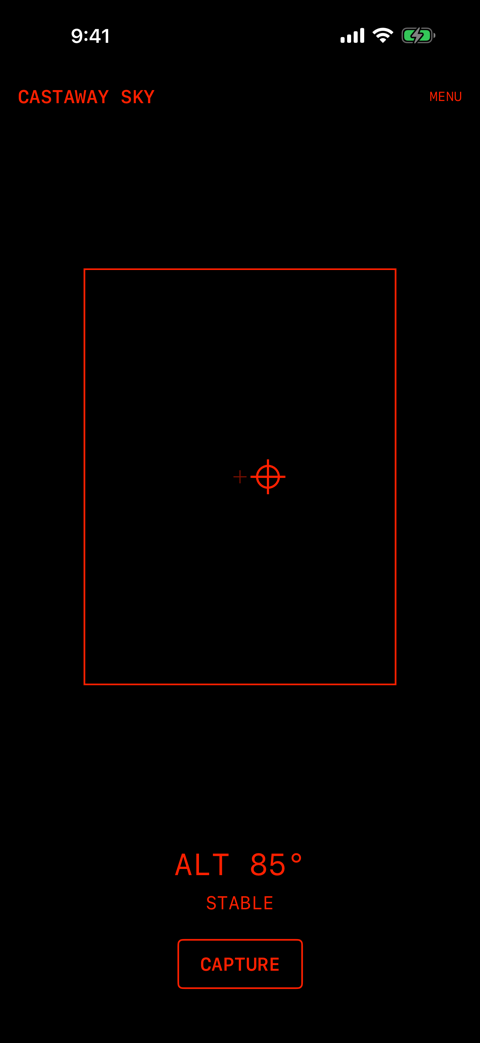
- CASTAWAY SKY (top left)
- The app name.
- MENU (top right)
- Opens MENU (section 5): photos, SUN & MOON FIX, MANUAL FIX, SKY CHART and more.
- Large frame
- The area the photo will cover (phone held upright).
- Small cross in the middle
- The camera direction (optical axis).
- Circle with a cross
- The zenith (straight up). When it is inside the frame, the zenith is in the photo. The closer to the zenith you aim, the better.
- Triangle outside the frame
- Points toward the zenith when it is outside the frame. Tilt the device that way.
- ALT 85°
- The elevation of the camera direction above the horizon. ALT --° means no sensor reading.
- STABLE / WAITING FOR STABILITY
- Whether the device is still.
- POINT AT THE SKY / LOW ELEVATION
- Shown when the camera points below the horizon, or less than 30° above it.
- CAPTURE / ABORT
- CAPTURE starts a capture; it can be pressed only when the device is still and the star data is loaded. During a capture it becomes ABORT, which stops and returns to Aim.
Taking a star photo
- In a dark place under a clear sky, point the back of the device at the sky, as close to straight up as you can (circle with a cross inside the frame).
- Rest the device on a rock or the ground, or hold it firmly with both hands. When it shows STABLE, CAPTURE can be pressed.
- Tap CAPTURE. The status goes HOLD STILL → STABLE → COUNTDOWN 3, 2, 1 → EXPOSING → COMPLETED. If the device moves during the countdown, it goes back to HOLD STILL.
- The exposure is about one second (shorter on some devices). Then the app moves to Analyzing (section 3) by itself.
Messages on the main screen
| CAMERA ACCESS DENIED | Camera access is not allowed. Tap OPEN SETTINGS and allow the camera. |
|---|---|
| CAMERA UNAVAILABLE | The back camera cannot be used. |
| RAW CAPTURE UNSUPPORTED | This device's camera cannot take RAW photos. Use MANUAL FIX, or load a photo of the starry sky. |
| MOTION SENSOR UNAVAILABLE | The device has no motion sensor, so it cannot take star photos. |
| NOT STABLE — TRY AGAIN | The device did not keep still for 60 seconds. Steady it and try again. |
| CAPTURE FAILED | The photo failed. Try again. |
| CAMERA PAUSED — USE FULL SCREEN | On iPad, another app shares the screen, so the camera is paused. Show Castaway Sky alone. |
| CAMERA IN USE BY ANOTHER APP | Another app (for example a call) is using the camera. |
| CAMERA INTERRUPTED | The camera was paused for another reason. |
| RAW NOT SUPPORTED — USE JPEG OR HEIC | The chosen file was RAW (DNG). Choose a JPEG or HEIC photo (section 6). |
| IMAGE UNREADABLE | The image could not be read. |
3Analyzing
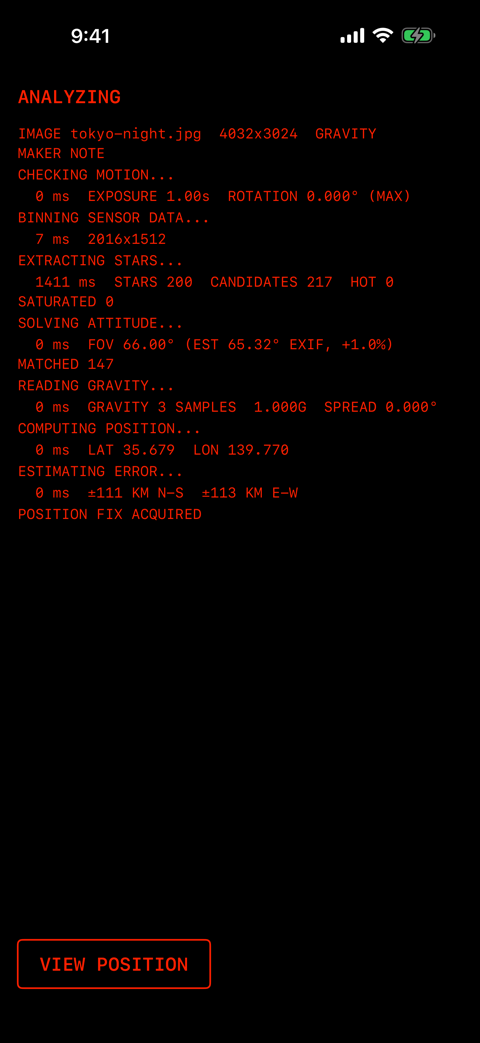
While the app computes a position from the photo, it logs each step. The number at the start of a result line is the time the step took (ms).
- IMAGE … (first line)
- Only for a loaded photo: file name, size, and where gravity came from (GRAVITY MAKER NOTE or ZENITH ASSUMED). For SIMULATE: SIMULATED SKY OF ….
- CHECKING MOTION...
- Whether the device moved during the exposure (exposure time and rotation).
- BINNING SENSOR DATA...
- Prepares the sensor data for analysis.
- EXTRACTING STARS...
- Finds the stars in the photo (STARS is the number found).
- SOLVING ATTITUDE...
- Matches the star pattern with the catalog to find the camera direction and field of view (MATCHED is the number of stars matched).
- READING GRAVITY...
- Reads the direction of gravity during the exposure.
- COMPUTING POSITION...
- Computes latitude and longitude.
- ESTIMATING ERROR...
- Estimates the error (north-south and east-west, km).
- POSITION FIX ACQUIRED and VIEW POSITION
- A position was found. Tap VIEW POSITION to see the result (Plot).
When the analysis fails
The reason is shown in large text, with BACK TO AIM to return to the main screen. The app does not crash.
| INSUFFICIENT STARS DETECTED | Too few stars, or the pattern was not recognized: clouds, city lights, a bright moon nearby, or something blocking the view. Try again under a dark, clear sky, aiming straight up. |
|---|---|
| DEVICE MOVED DURING EXPOSURE | The device rotated more than 0.1° during the exposure. Rest it on something and try again. |
| NO SENSOR DATA | There was no gravity data for the exposure. |
| FIELD OF VIEW UNKNOWN | The photo's field of view is unknown. For a loaded photo, enter it in IMPORT. |
| DATA UNAVAILABLE | The built-in star data could not be read. |
| INTERNAL ERROR / ANALYSIS FAILED | Another failure. Try again. |
| CANCELLED | The analysis was stopped. |
4Result (Plot)
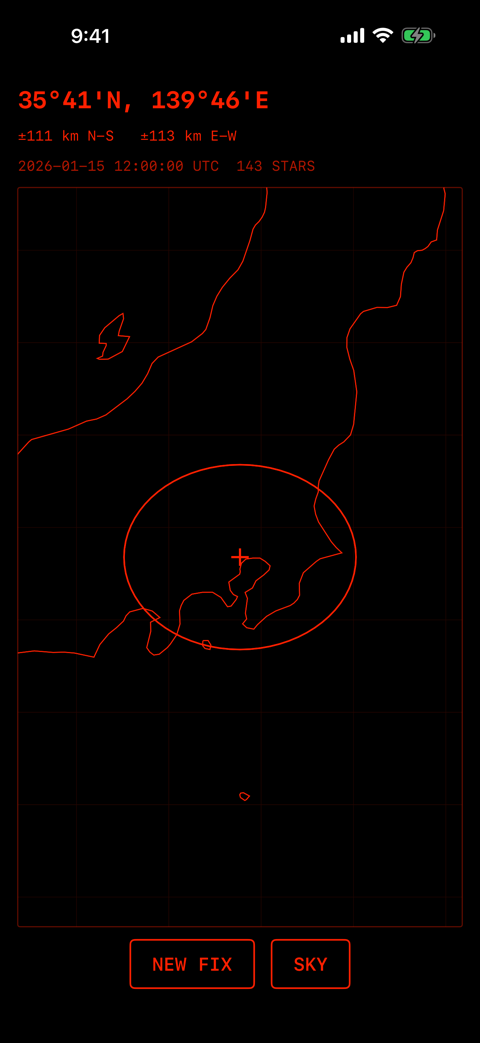
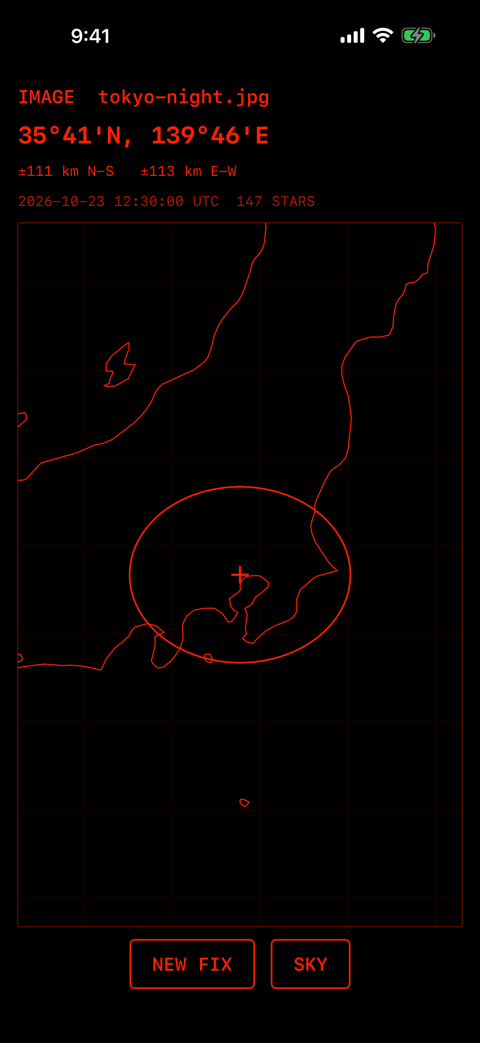
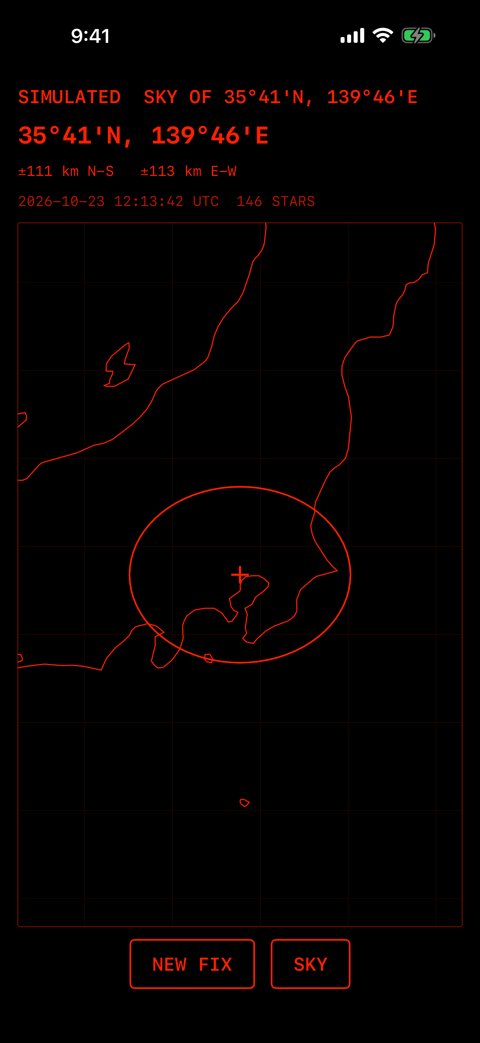
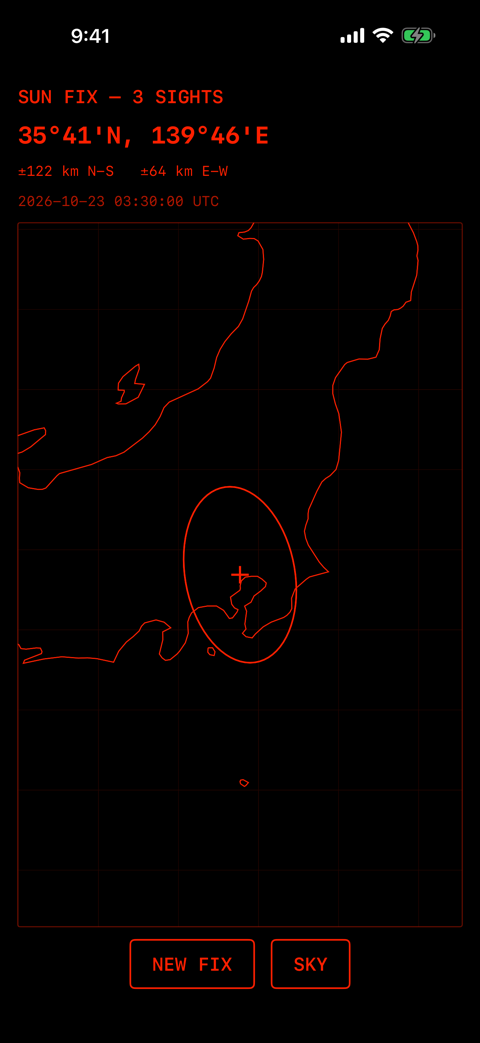
- Heading (source)
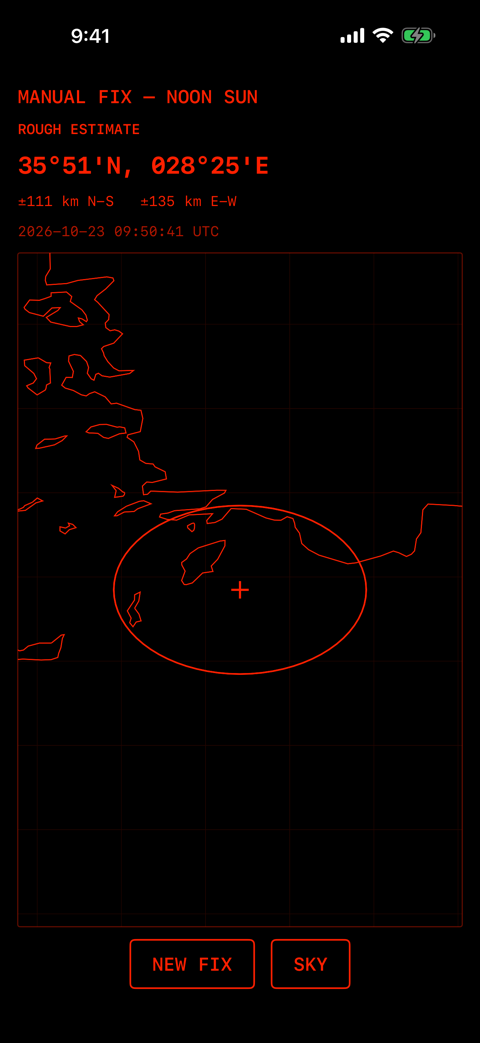
- How the position was found. None for a star photo; IMAGE <file name> for a photo; SIMULATED SKY OF … for SIMULATE; SUN FIX — 3 SIGHTS, MOON FIX — n SIGHTS or SUN & MOON FIX — n SIGHTS (a SUN, b MOON) for sights; MANUAL FIX — NOON SUN and so on with ROUGH ESTIMATE for manual methods.
- 35°41'N, 139°46'E
- The estimated latitude and longitude in degrees and minutes. When there are several candidates (sun and moon), each is listed as A, B.
- ZENITH ASSUMED — ROUGH ESTIMATE
- The photo had no gravity data, so its center was taken as straight up. The error is larger.
- ±111 km N-S ±113 km E-W
- The estimated error (1σ), north-south and east-west.
- 2026-01-15 12:00:00 UTC 143 STARS
- The time of the observation (UTC), and for star photos, photos and SIMULATE the number of stars matched.
- Map
- A world map of coastlines, borders and a grid (no place names). The cross is the estimated position and the ellipse the error; the ellipse may be tilted. Each candidate gets its own cross, ellipse and A/B label. Drag to move; pinch to zoom.
- NEW FIX
- Discards the result and returns to the main screen.
- SKY
- Opens SKY CHART for this position and time.
5MENU
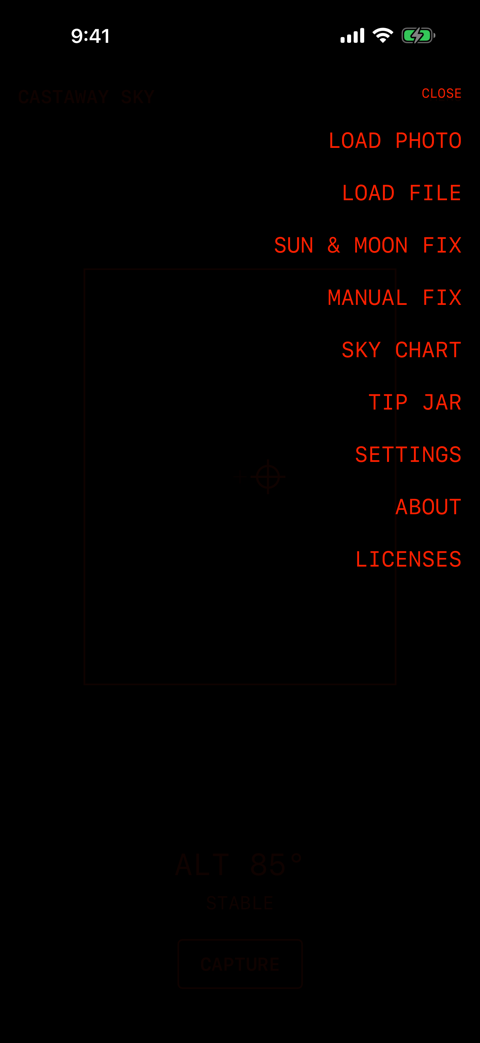
Tap MENU on the main screen. Tap an item to open it; tap CLOSE or the dark area to close the menu.
- LOAD PHOTO
- Choose a starry-sky photo from your library and analyze it (section 6).
- LOAD FILE
- Choose an image file from the Files app and analyze it (section 6).
- SUN & MOON FIX
- Measure the sun and the moon to find your position (section 7).
- MANUAL FIX
- Classic methods without the camera, and clues (section 8).
- SKY CHART
- See the sky for any place and time; try SIMULATE (section 9).
- TIP JAR
- Optional tips (section 10).
- SETTINGS
- Choose the display color, red or green (section 11).
- ABOUT
- Version, safety note, privacy policy, support (section 12).
- LICENSES
- Licenses of the components and data the app uses (section 12).
6From a photo (LOAD PHOTO, LOAD FILE)
Estimate a position from a starry-sky photo you took earlier. Photos taken with the iPhone Camera app carry the date, the field of view and the direction of gravity (MakerNote), and give the best results.
- LOAD PHOTO: choose from your photo library.
- LOAD FILE: choose from the Files app. JPEG, HEIC, HEIF, PNG and TIFF are supported; RAW (DNG) is not.
- After you choose, LOADING IMAGE... appears and then the IMPORT sheet opens.
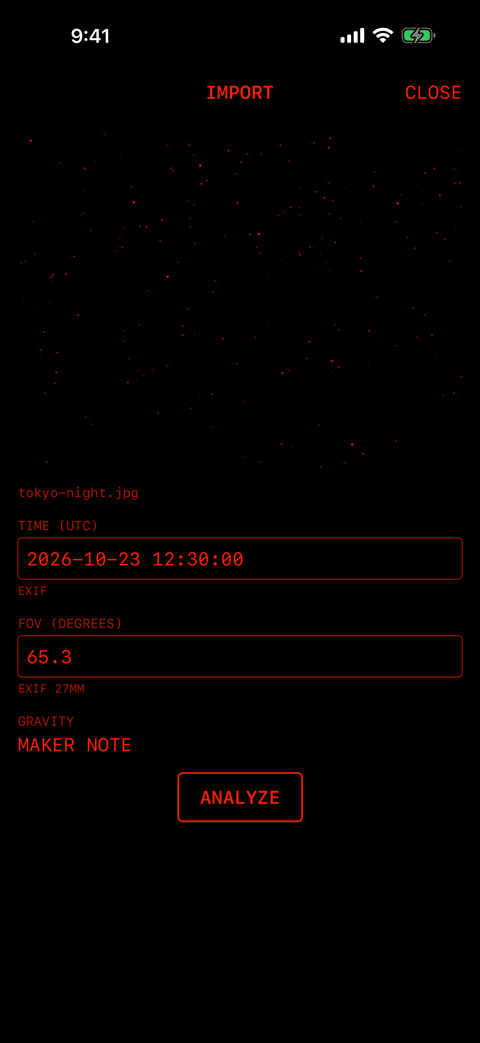
- Preview and file name
- A small red preview of the photo. Library photos are named PHOTO.
- TIME (UTC)
- When the photo was taken (UTC), read from the photo and editable. The line below tells the source: EXIF (with a time zone offset), TIME ZONE ASSUMED UTC+09:00 (no offset in the photo; the device's time zone was assumed), NO TIME IN IMAGE — ENTER UTC, or MANUAL (edited).
- FOV (DEGREES)
- The horizontal field of view, computed from the 35 mm equivalent focal length and editable. Source line: EXIF 26MM (plus DIGITAL ZOOM x2.0 if zoomed), UNKNOWN — ENTER DEGREES, or MANUAL.
- GRAVITY
- Where the direction of gravity comes from. MAKER NOTE uses the device's accelerometer data stored in the photo. For photos without it, rotated (portrait) photos, or front-camera photos, the center of the photo is taken as straight up (ZENITH ASSUMED — …), which gives a rough estimate.
- ANALYZE
- Checks the inputs and starts the analysis (section 3).
| TIME: ENTER UTC AS YYYY-MM-DD HH:MM:SS | Enter the time like 2026-10-23 12:30:00 (seconds are optional). |
|---|---|
| FOV: ENTER DEGREES | Enter the field of view in degrees (more than 0 and less than 180). |
| FIELD OF VIEW OUT OF RANGE | The field of view is outside what the built-in star data can solve (the message shows the value and the solvable range). Use a photo from the 1× wide camera. |
| IMAGE UNREADABLE | The image could not be read. |
7Sun and moon sights (SUN & MOON FIX)
Measure the altitude of the sun or the moon three or more times, hours apart, to find your position. You can use the sun, the moon, or both together. Open it from MENU > SUN & MOON FIX.
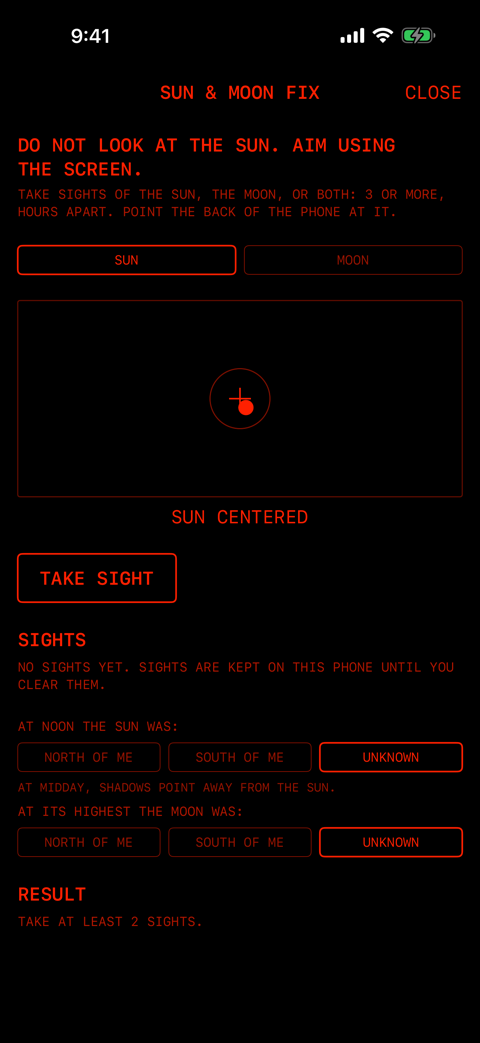
- DO NOT LOOK AT THE SUN. AIM USING THE SCREEN.
- Never look at the sun; aim with the screen.
- TAKE SIGHTS OF THE SUN, THE MOON, OR BOTH: …
- Take three or more sights, hours apart, pointing the back of the device at the body.
- SUN / MOON
- Choose the body to measure (SUN at first).
- Aim box
- Covers ±30° around the camera direction. The cross is the camera direction, the faint circle the usable range (10° from the center), and the dot the sun or moon. A body outside the box is shown on its edge. No camera image is shown.
- Text under the box
- SUN CENTERED (inside the circle; ready), CENTER THE SUN ↗ (the dot lies that way; turn the device toward it), NO SUN IN VIEW, STARTING CAMERA..., AIM AID UNAVAILABLE (camera cannot be used), or a camera-paused message (section 2). For the moon, SUN reads MOON.
- TAKE SIGHT
- Takes the sight. While shooting it reads TAKING.... Then the result appears on the right, for example SUN ALT 40.5° (or the reason for a failure). The sun is one photo; the moon is a burst with different exposures.
Sights and hints
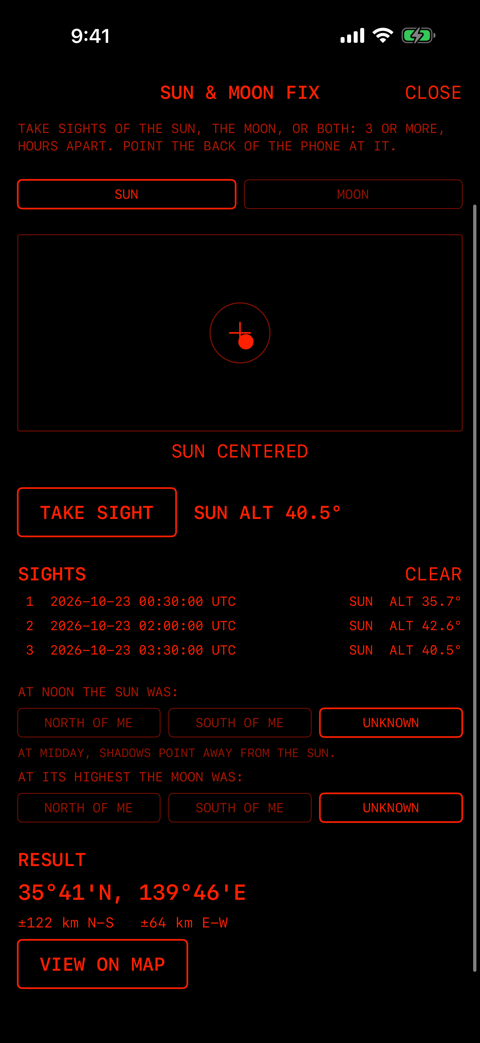
- SIGHTS rows
- One row per sight: number, time (UTC), body and apparent altitude (for example SUN ALT 35.7°). Tap a row to use or skip it in the solution (skipped rows are dimmed). Sights older than 24 hours start out skipped.
- CLEAR
- Deletes all sights. The app asks CLEAR ALL SIGHTS?; tap YES to delete (the hints are reset too) or NO to keep them.
- AT NOON THE SUN WAS:
- Whether the noon sun was north or south of you (NORTH OF ME / SOUTH OF ME / UNKNOWN). It picks between mirror-image candidates. At midday, shadows point away from the sun.
- AT ITS HIGHEST THE MOON WAS:
- Whether the moon at its highest was north or south of you. The moon's hint.
- RESULT
- The estimated position and error (±km). With too few sights: TAKE AT LEAST 2 SIGHTS. or ONE MORE SIGHT NEEDED — WAIT 1–2 HOURS.
- VIEW ON MAP
- Shows the result (Plot) on the map.
Taking sights
- Choose SUN (or MOON).
- Without looking at the sun, point the back of the device at it. Move the device the way the arrow shows until the dot is inside the circle and SUN CENTERED appears.
- Tap TAKE SIGHT. You can hold the device in your hands, but keep it steady around the tap.
- Wait 1.5 hours or more and repeat. Three sights in the morning, around noon and in the afternoon usually give a single position.
- If the result shows two candidates, set the noon sun or the moon at its highest, or take another sight.
Sun and moon one after the other (two candidates)
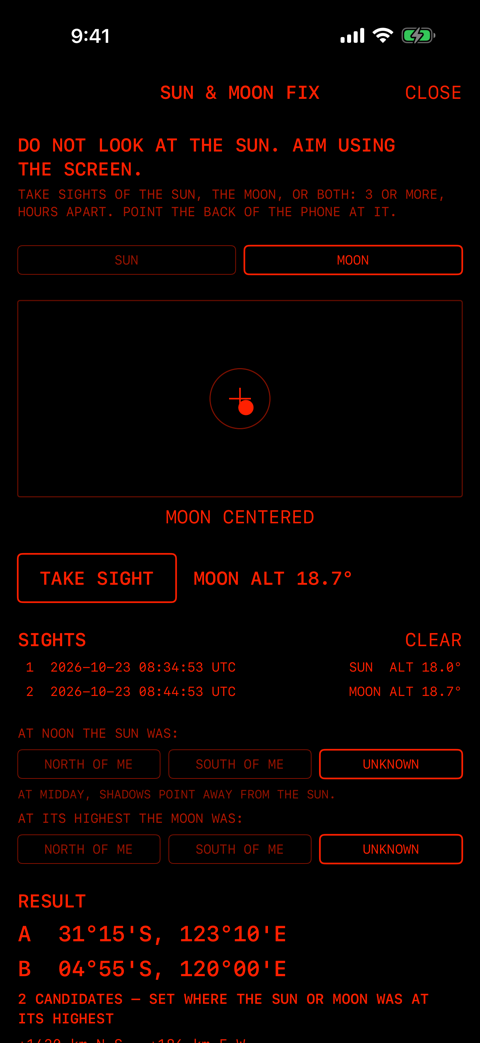
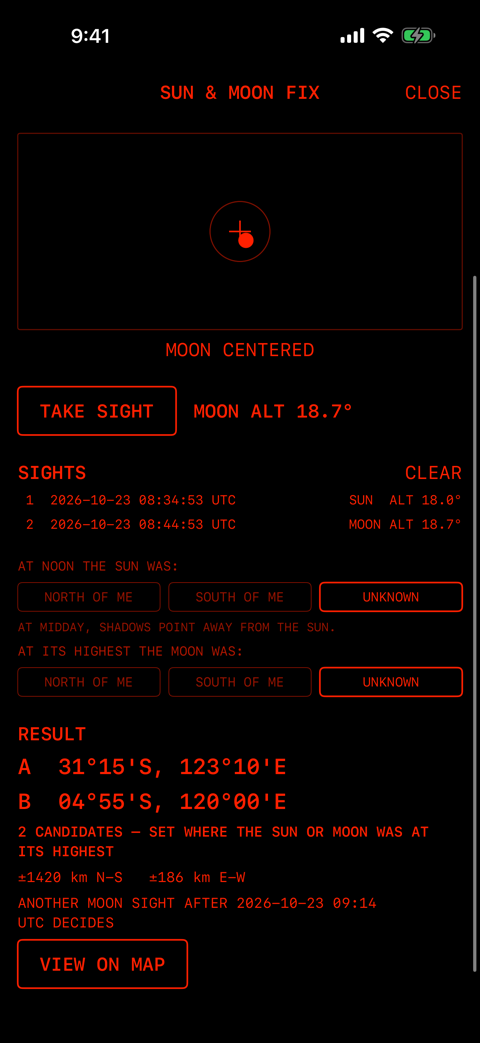
When the moon is up in the daytime, one sight of each gives candidates within minutes. Mirror-image candidates (A and B) often remain; decide between them as follows.
| n CANDIDATES — SET WHERE THE SUN OR MOON WAS AT ITS HIGHEST | Set whether the noon sun, or the moon at its highest, was north or south of you. |
|---|---|
| n CANDIDATES — SET WHERE THE SUN WAS AT NOON, OR TAKE ANOTHER SIGHT | The moon hint is set. Set the sun hint or take another sight. |
| n CANDIDATES — SET WHERE THE MOON WAS AT ITS HIGHEST, OR TAKE ANOTHER SIGHT | The sun hint is set. Set the moon hint or take another sight. |
| n CANDIDATES CANNOT BE TOLD APART YET — TAKE ANOTHER SIGHT | The hints do not separate them. Take another sight. |
| ANOTHER SUN SIGHT AFTER 2026-10-23 12:34 UTC DECIDES | A sun (or moon) sight after this time will leave a single candidate. |
| TAKE ANOTHER SIGHT AFTER … UTC / TAKE ANOTHER SIGHT LATER | Another sight is advised to improve the result (fewer than three sights, or a large error). |
| IF THE MOON IS UP, A MOON SIGHT NOW GIVES CANDIDATES IN MINUTES. | Shown after a sun sight when the moon is near half. If you can see it, take a moon sight now. |
| NO POSITION FITS THE SUN OR MOON SETTING — CHECK THEM | No candidate matches the hints. Check north and south. |
| SIGHTS DISAGREE — CHECK OR CLEAR | The sights do not agree. Tap a wrong sight to skip it, or CLEAR and start again. |
When a sight fails (shown next to TAKE SIGHT)
| SUN NOT FOUND / MOON NOT FOUND | The body is not in the photo. Put the dot inside the circle and try again. |
|---|---|
| SUN NOT CLEAR — CLOUDS OR GLARE / MOON NOT CLEAR — CLOUDS OR GLARE | Clouds or glare blur the outline. Wait for a clear moment. |
| CENTER THE SUN / CENTER THE MOON | The body is more than 10° from the center. |
| SUN TOO LOW / MOON TOO LOW | The body is lower than 10°, where the atmosphere bends light too much. |
| MOON TOO THIN | Less than 12% of the moon is lit. |
| MOON TOO BRIGHT — TRY AGAIN | The moon was overexposed. Take it again. |
| HOLD STEADIER | The device turned more than 1° around the shot. Hold it firmly and try again. |
| MOTION SENSOR UNAVAILABLE / CAMERA DATA UNAVAILABLE | Sensor or camera data is missing. |
| SIGHT FAILED | Another failure. |
8By hand (MANUAL FIX)
When the camera or sensors cannot be used, classic methods give a rough latitude and longitude (±1–3°). Open it from MENU > MANUAL FIX. Number fields also accept a comma as the decimal point. Inputs are not saved.
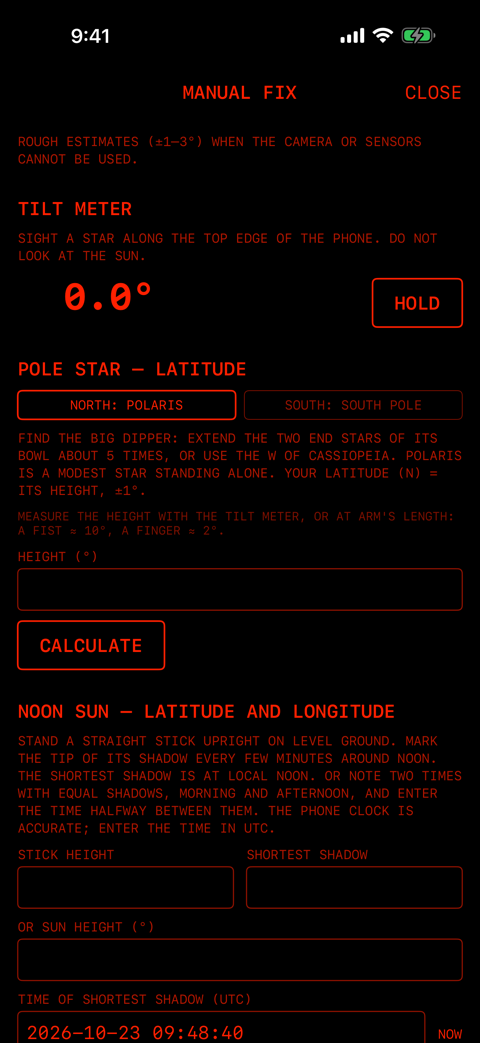
TILT METER
Measures the altitude of a star or the moon using the top edge of the device as a sight. Look along the edge at the star; the large number (for example 41.3°) is its altitude. Never sight the sun.
- HOLD
- Freezes the average of the last second as HELD 41.3°. Then USE HELD buttons appear beside the height fields; tap one to copy the value.
POLE STAR — LATITUDE
- NORTH: POLARIS / SOUTH: SOUTH POLE
- Polaris in the northern hemisphere; the south celestial pole in the southern. Find Polaris by extending the two end stars of the Big Dipper's bowl about 5 times, or from the W of Cassiopeia. The south celestial pole lies about 4.5 times the long axis of the Southern Cross beyond its foot.
- HEIGHT (°)
- Its altitude, measured with the TILT METER, or at arm's length (a fist ≈ 10°, a finger ≈ 2°).
- CALCULATE
- Gives the latitude (±1° with Polaris, ±2° with the south pole). Outside 0–90°: ENTER A HEIGHT BETWEEN 0 AND 90°.
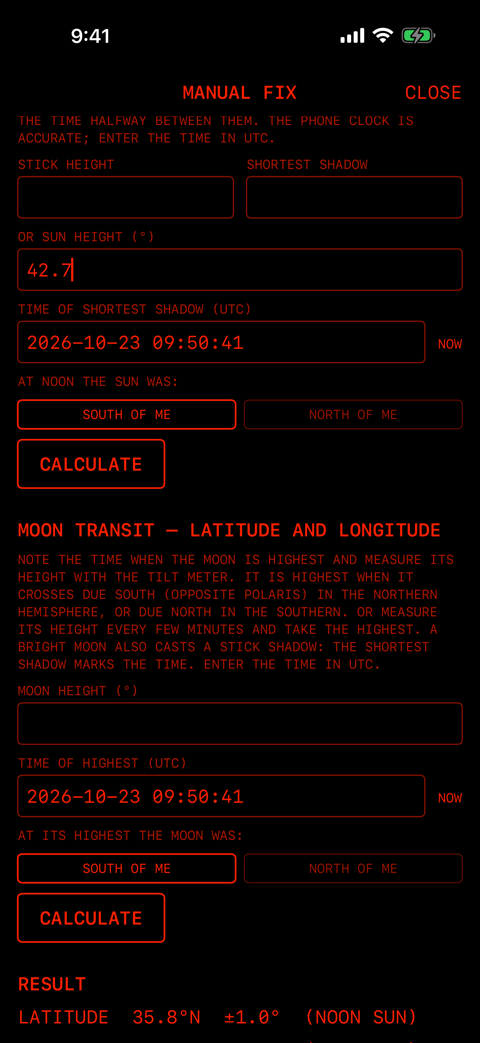
NOON SUN — LATITUDE AND LONGITUDE
Stand a straight stick upright on level ground and mark the tip of its shadow every few minutes. The shortest shadow is local noon. You can also note two times with equal shadows, one in the morning and one in the afternoon, and use the time halfway between.
- STICK HEIGHT / SHORTEST SHADOW
- The stick's height and the shortest shadow, in any one unit. With both, the sun's altitude appears, for example SUN HEIGHT 42.7°.
- OR SUN HEIGHT (°)
- Enter the sun's altitude directly instead (takes priority over the stick).
- TIME OF SHORTEST SHADOW (UTC)
- When the shadow was shortest (UTC). It starts at the time you opened the screen; NOW sets the current time.
- AT NOON THE SUN WAS: SOUTH OF ME / NORTH OF ME
- Whether the noon sun was south or north of you (south at first).
- CALCULATE
- Gives latitude (±1.0°) and longitude (±1.5°).
MOON TRANSIT — LATITUDE AND LONGITUDE
The moon is highest when it crosses due south (northern hemisphere) or due north (southern hemisphere). Measure its altitude with the TILT METER every few minutes and take the highest, or use the time when its shadow is shortest.
- MOON HEIGHT (°) / TIME OF HIGHEST (UTC)
- The moon's highest altitude and its time (UTC; with NOW).
- AT ITS HIGHEST THE MOON WAS: SOUTH OF ME / NORTH OF ME
- Whether the moon was south or north of you then.
- CALCULATE
- Gives latitude (±1.0°) and longitude (±2.5°), corrected for the moon's parallax (about 1°).
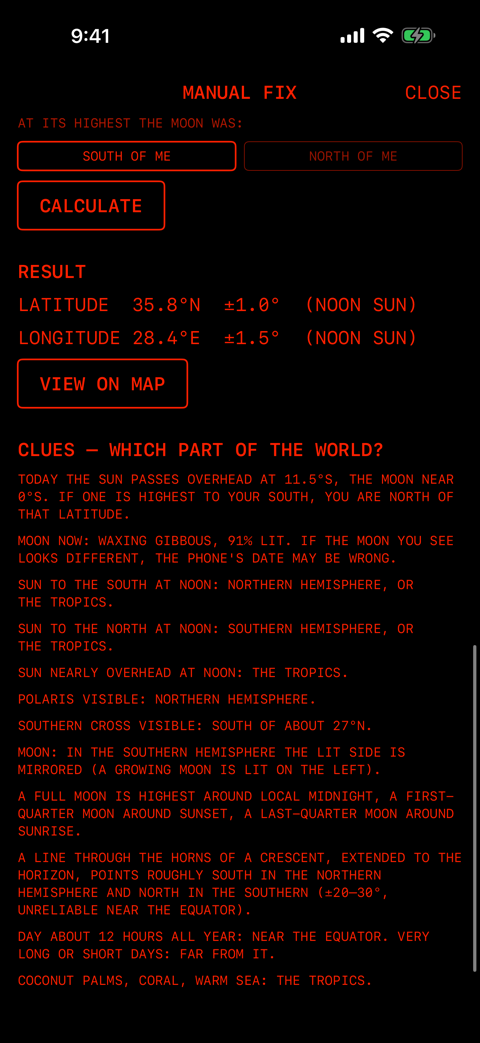
RESULT
- LATITUDE 35.8°N ±1.0° (NOON SUN)
- The latitude, its rough error and the method; LATITUDE — until calculated.
- LONGITUDE 28.4°E ±1.5° (NOON SUN)
- The longitude. Polaris alone gives no longitude (LONGITUDE NEEDS THE NOON SUN OR THE MOON TRANSIT.).
- VIEW ON MAP
- Appears when both are known, and shows the result (Plot) headed MANUAL FIX — <method> and ROUGH ESTIMATE.
Input problems show messages such as ENTER THE STICK AND SHADOW, OR THE SUN HEIGHT, ENTER THE MOON HEIGHT and ENTER THE TIME AS YYYY-MM-DD HH:MM:SS (UTC).
CLUES — WHICH PART OF THE WORLD?
No position, but clues that narrow down where on Earth you are.
- The latitudes where the sun and the moon pass overhead today. If one is highest to your south, you are north of that latitude.
- The moon's phase now (for example WAXING GIBBOUS, 91% LIT). If the moon you see looks different, the device's date may be wrong.
- Noon sun to the south: northern hemisphere or the tropics. To the north: southern hemisphere or the tropics. Overhead: the tropics.
- Polaris visible: northern hemisphere. Southern Cross visible: south of about 27°N.
- In the southern hemisphere, the lit side of the moon is mirrored.
- A full moon is highest around midnight, a first quarter around sunset, a last quarter around sunrise.
- A line through the horns of a crescent points roughly south in the north and north in the south (±20–30°; unreliable near the equator).
- Days of about 12 hours all year mean near the equator; very long or short days mean far from it.
- Coconut palms, coral and a warm sea: the tropics.
9Star chart (SKY CHART, SIMULATE)
Enter a latitude, longitude and time to see the whole sky above that place: stars, the moon and the sun. Open it from MENU > SKY CHART, or with SKY on a result (it then opens at that position and time).
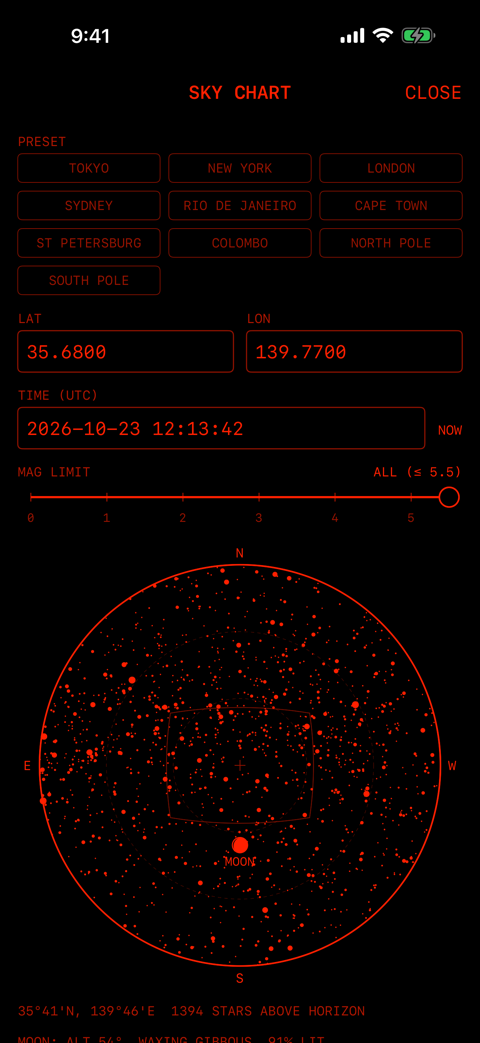
- PRESET
- TOKYO, NEW YORK, LONDON, SYDNEY, RIO DE JANEIRO, CAPE TOWN, ST PETERSBURG, COLOMBO, NORTH POLE, SOUTH POLE. Tap one to fill latitude and longitude; the matching button is highlighted.
- LAT / LON
- Latitude and longitude as degrees (
35.68,-33.87), degrees and minutes (35°41'N) or degrees, minutes and seconds (35°41'22"N). Use S and W, or a minus sign, for south and west. - TIME (UTC)
- The time (UTC). NOW sets the current time.
- MAG LIMIT
- The faintest stars to draw (magnitude 0 to 5.5 in steps of 0.5). The value shows as ALL (≤ 5.5) or, for example, ≤ 3.0. Tap or drag sideways to change it; it is remembered while the app is open.
- Chart
- Centered on the zenith, as seen looking up (north up, east left). The outer circle is the horizon, the dashed circles are 30° and 60° altitude, the small cross is the zenith, and the faint outline is what SIMULATE photographs. Brighter stars are larger. The moon is drawn with its phase and labeled MOON; the sun is a ring with a dot labeled SUN (both only above the horizon). At the poles, right ascensions (0h and so on) replace the compass labels.
If an input is missing or invalid, the chart is replaced by ENTER LATITUDE, LONGITUDE AND UTC TIME and an example.
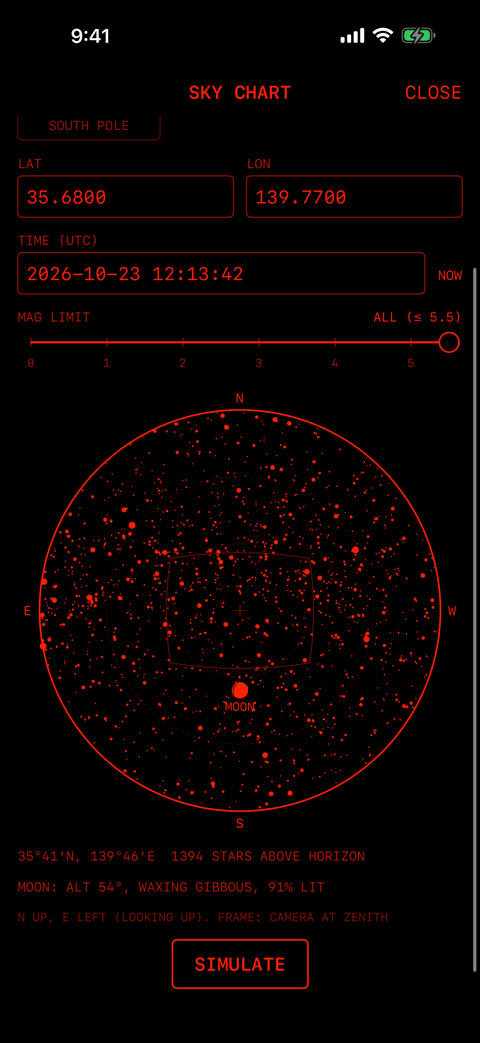
- 35°41'N, 139°46'E 1394 STARS ABOVE HORIZON
- The place and the number of stars above the horizon.
- SUN: ALT 45° / MOON: ALT 54°, WAXING GIBBOUS, 91% LIT
- Altitudes of the sun and the moon, and the moon's phase and lit fraction (only when above the horizon).
- N UP, E LEFT (LOOKING UP). FRAME: CAMERA AT ZENITH
- How the chart is oriented, and that the outline is a camera aimed straight up.
- SIMULATE
- Renders a photo of this sky taken straight up and runs the same analysis as a real star photo, so you can try the app in daylight or indoors. The result is marked SIMULATED so that it is never mistaken for a real fix.
10TIP JAR
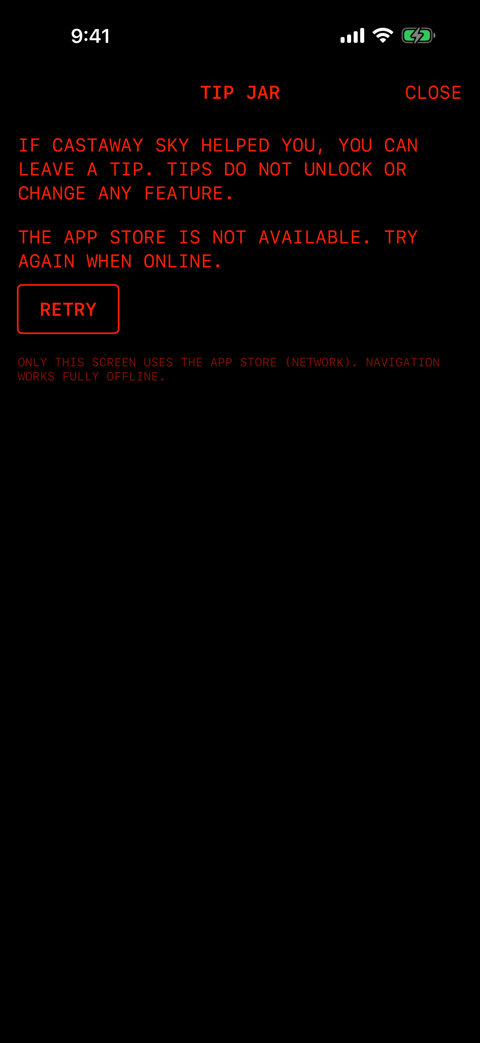
If the app helped you, you can leave an optional tip. Tips unlock nothing; every feature is free. This is the only screen that uses the network.
- Price buttons
- Three tips in your local currency, lowest first. Tapping one opens the App Store purchase sheet (the only screen not in the app's color).
- LOADING…
- Loading the prices.
- THANK YOU.
- The tip was received.
- WAITING FOR APPROVAL.
- Waiting for Family Sharing approval.
- PURCHASE FAILED.
- The purchase failed.
- THE APP STORE IS NOT AVAILABLE. TRY AGAIN WHEN ONLINE.
- The App Store cannot be reached (for example in airplane mode). Tap RETRY when you are online.
Whether you sent a tip is not saved.
11SETTINGS (display color)
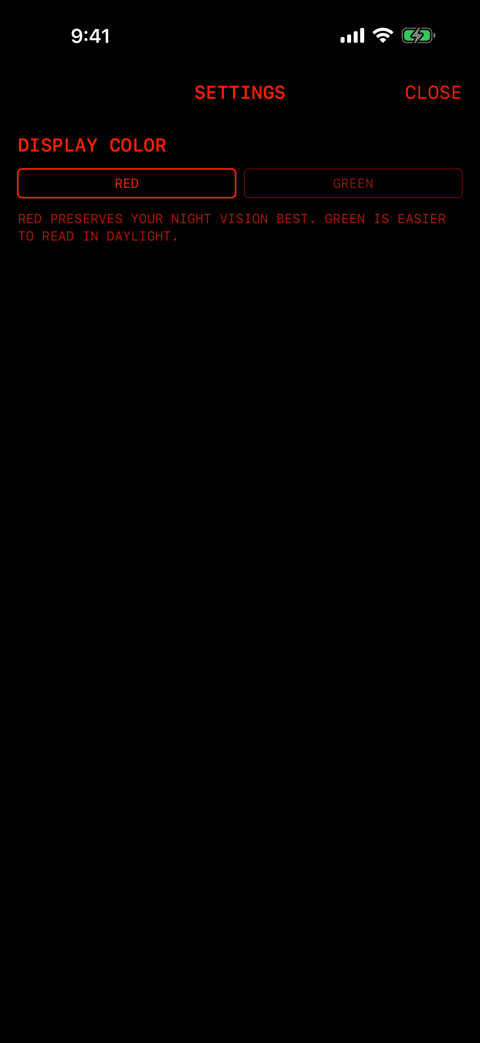
Open it from MENU > SETTINGS to choose the display color (the one color of text and lines). The background stays black.
- DISPLAY COLOR: RED / GREEN
- Takes effect at once on every screen: text, lines, the map, the star chart and the aim box. RED is the default.
- RED PRESERVES YOUR NIGHT VISION BEST. GREEN IS EASIER TO READ IN DAYLIGHT.
- Use red when you look at the night sky; it disturbs dark-adapted eyes the least. Green is brighter and easier to read in daylight or at dusk.
12ABOUT, LICENSES
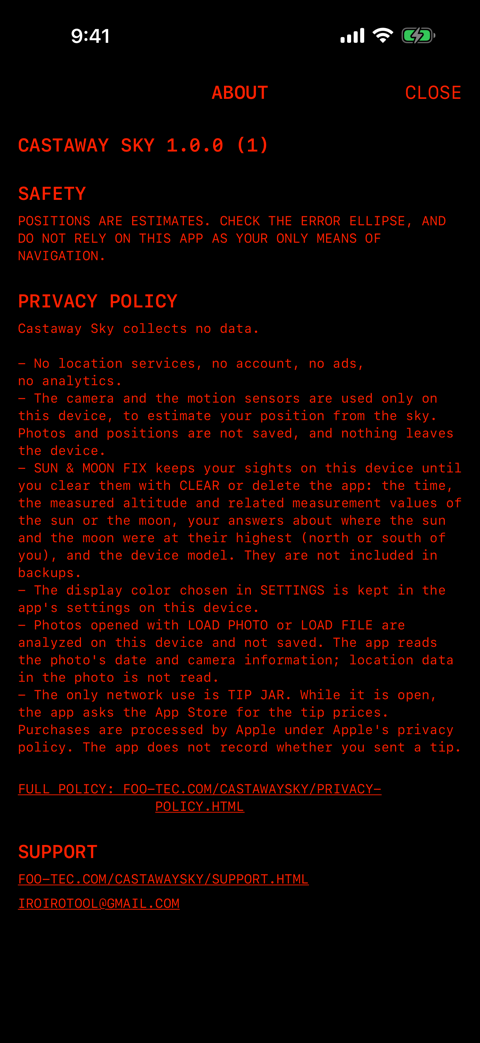
- CASTAWAY SKY 1.0.0 (1)
- The app version (build number in parentheses). Please include it when you contact us.
- SAFETY
- Positions are estimates. Check the error ellipse, and do not rely on this app as your only means of navigation.
- PRIVACY POLICY
- A summary of the privacy policy, readable offline. The FULL POLICY: … link opens the full privacy policy on this site.
- SUPPORT
- Links to the support page and the support email.
- LICENSES
- Sources and licenses of the components and data in the app: ERFA (astronomy), Cedar Solve / tetra3 / Tetra (star identification), Natural Earth (map), and the star catalog (Bright Star Catalogue, 5th edition).
13Messages and what to do
| INSUFFICIENT STARS DETECTED | Use a dark, clear sky and aim straight up. Avoid city lights, a bright moon, clouds, trees and buildings. |
|---|---|
| DEVICE MOVED DURING EXPOSURE / NOT STABLE — TRY AGAIN | Rest the device on the ground or a rock, or hold it firmly with both hands. |
| RAW CAPTURE UNSUPPORTED | This device cannot photograph the stars, the sun or the moon. Use MANUAL FIX, or load a photo. |
| CAMERA ACCESS DENIED | Tap OPEN SETTINGS and allow the camera. |
| CAMERA PAUSED — USE FULL SCREEN | On iPad, stop sharing the screen with another app and show Castaway Sky alone. |
| FIELD OF VIEW UNKNOWN / FIELD OF VIEW OUT OF RANGE | Enter the field of view in IMPORT, or use a photo from the 1× wide camera. |
| SUN NOT CLEAR — CLOUDS OR GLARE | Wait for a gap in the clouds. |
| n CANDIDATES — … | Set a hint (noon sun or highest moon, north or south), or take another sight after the time shown. |
| SIGHTS DISAGREE — CHECK OR CLEAR | Tap a wrong sight to skip it, or CLEAR and start again. |
14Safety and accuracy
- Results are estimates. For star photos and SUN & MOON FIX, the target is within about 50–100 km (about 27–54 nautical miles). MANUAL FIX gives a rough estimate within 1–3 degrees.
- Always read the error ellipse, and do not rely on this app as your only means of navigation.
- Never look at the sun, and never sight the sun with the TILT METER.
- A wrong clock shifts the longitude: 4 minutes of error moves it by 1°.
15Contact
For questions or bug reports, email [email protected]. Including the app version (first line of ABOUT) and your device model helps.