flicli User Guide
Clipboard history for Mac, iPhone and iPad. The app's screens are in Japanese; this guide gives each label with the Japanese text shown in the app. Covers versions 1.0.0 and 1.1.0; what is new or changed in 1.1.0 is marked from 1.1.0 (summary: Changes in 1.1.0).
Changes in 1.1.0
What 1.1.0 adds and changes. The places in this guide are marked from 1.1.0; anything without the mark applies to both 1.0.0 and 1.1.0.
History
- Editing text: right-click > 編集… (edit) rewrites an item's text; 複製して編集… (duplicate and edit) saves the edited text as a new item (chapter 3; iPhone / iPad in chapter 11).
- No more merging: copying the same thing again creates a new item. An item you copy back from the list moves to the top. Snippets you copy back are not added to the history (chapter 8).
- Sorting: by updated time or name, ascending or descending; pinned items always stay on top (chapter 2).
- New history is scheduled for deletion: captured items get the 削除予定 mark and go after 7 days by default. Act only on what you want to keep: remove the mark, or add a category, a pin or a name (chapter 8).
- Scheduling deletion keeps pins and categories: in 1.0.0 it removed them (chapter 3).
- Tags: categories and 削除予定 are shown the same way. Add and remove them from the "+" menu; categories that do not fit go under "ほか N ▾"; reorder, rename and delete them in Settings > タグ (chapter 2, chapter 10).
- Right-click (Mac): selects the row under the pointer first, then opens its menu (chapter 3).
- Hide: a shown encrypted item or snippet can be hidden again with 隠す (chapter 5).
- Preview cache: previews are kept in memory and the neighbors are read ahead. Turn it on or off and set the limit in Settings > プレビュー (chapter 10).
- Sync tables: synced data moves to new tables such as
item_v5(chapter 9).
Snippets
- Placeholders changed:
{date}and{time}are gone, replaced by{datetime}and{datetime format="…"}. Snippets written for 1.0.0 with{date}or{time}need rewriting (chapter 6). - Input fields: written like HTML,
{input:Label}(one line) and{textarea:Label}(several lines), with required, initial value, width and more; plus date/time pickers and number fields (chapter 6). - 入力 / 原文 / プレビュー: for snippets with placeholders, fill in the values above the preview and check the result before copying back (chapter 6).
- Suggestions: values you typed before are suggested per label (this device only) (chapter 6).
- Samples: Settings > サンプルを追加 adds 8 example snippets (chapter 6).
1Getting started
flicli keeps what you copy and lets you put it back on the clipboard later. On the Mac it lives in the menu bar and records copies automatically while it runs. On iPhone and iPad you add items yourself, with the paste button or the share sheet.
Requirements
- Mac: macOS 14 or later, Apple silicon
- iPhone / iPad: iOS / iPadOS 17 or later
- No account. Only sync (chapter 9) needs a Turso database of your own
Conventions
- Copy back: choosing an item puts its content on the clipboard. Paste as usual with ⌘V (or Paste from the long-press menu on iPhone / iPad). flicli never pastes by itself.
- Marks: an item can be pinned (ピン留め), categorized (カテゴリ), scheduled for deletion (削除予定), encrypted (暗号化), and named. Pinning only puts the item at the top of the list; it does not decide whether an item is kept (chapter 8).
- from 1.1.0Tags: categories and 削除予定 are both shown as "tags", in the same style. Newly captured history gets 削除予定; to keep an item, remove the mark or give it a category, a pin or a name (chapter 8).
- Network: nothing is sent to the developer. The only network use is sync, if you set it up, and the tip jar.
2The Mac panel — history
Click the clipboard icon in the menu bar; the panel opens below it. The app in front stays in front, so after closing the panel you can paste with ⌘V right away. Click the icon again, click outside, or press Esc to close. There is no hotkey.
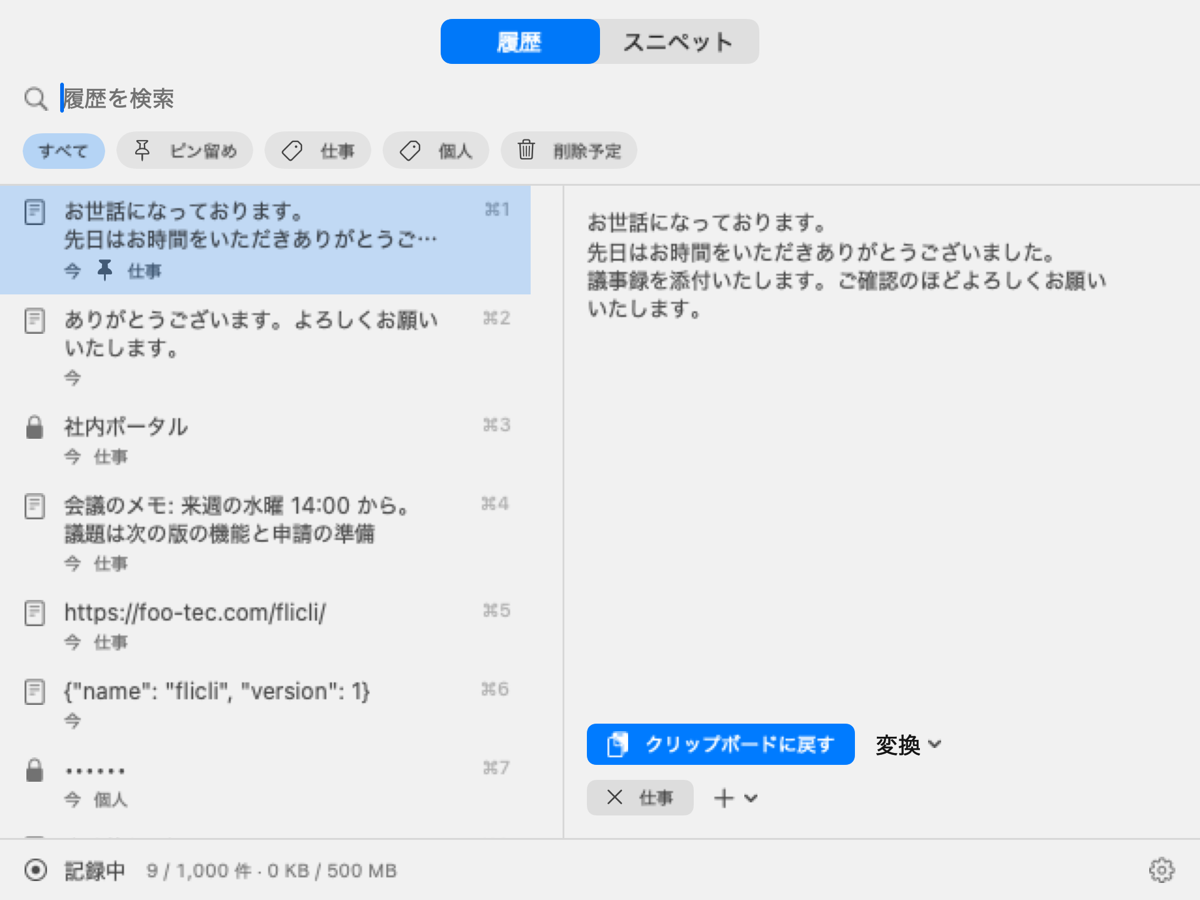
- 履歴 / スニペット (top center)
- Switches between history and snippets (chapter 6).
- Search field (履歴を検索)
- Focused as soon as the panel opens. Matches the content and the name you gave an item. Two or more characters use full-text search, one character matches substrings. ⌘F returns to the field; Esc clears it.
- Sort (next to the search field) from 1.1.0
- Choose 更新日時(新しい順) (updated, newest first), 更新日時(古い順) (updated, oldest first), 名前(昇順) (name, ascending) or 名前(降順) (name, descending). Pinned items stay on top in every order. Items without a name sort by their first line in the list. The updated time changes when an item is captured, copied back from the list, edited, or when marks or the name change.
- Chips: すべて / ピン留め / categories / 削除予定
- Filter the list (all, pinned, each category, scheduled for deletion). Combine with search.
from 1.1.0Only the categories that fit are shown; the rest are under ほか N ▾ (N more), which opens a searchable list. The order is set in Settings > タグ. Right-click a category tab for カテゴリを削除… (delete category). - List (left)
- Newest first (from 1.1.0or the sort order you choose), pinned items grouped at the top. First line: the beginning of the content, or the name if you gave one. Second line: source app, time, marks and categories. ⌘1–⌘9 on the right show the shortcut that copies that row. Encrypted items show a lock and "••••••" (or their name).
- Preview (right)
- Full text, image or file list of the selected item, with the name as a heading. Below: クリップボードに戻す (copy back), 変換 (transform), and the category editor (× removes, + adds; 新しいカテゴリ… creates one).
from 1.1.0The item's tags (categories, and 削除予定 shown as "削除予定 · あと N 日", N days left) are display-only, without ×. Add or remove tags from the "+" menu, which lists every tag with a checkmark on the ones attached. Previews are kept in memory and the neighbors are read ahead, so they appear at once (Settings > プレビュー, chapter 10). - Bottom strip
- Recording state (記録中 recording / 記録を停止中 stopped, see chapter 12), this device's item count and size against the limits, and the gear for Settings.
3Item actions (right-click and keys)
Right-click an item in the list for its menu; the same actions have keys.
from 1.1.0Right-clicking first selects the row under the pointer (the preview follows), then opens that row's menu. A single click selects the row immediately.
| クリップボードに戻す (copy back) | Puts the content on the clipboard and closes the panel. Double-click, Return and ⌘1–⌘9 do the same. Encrypted items can be copied back while still hidden (they are marked concealed so that other clipboard tools do not keep them). |
|---|---|
| 名前を付ける… / 名前を変える… (name) | Gives the item a name (chapter 4). ⌘T. from 1.1.0Naming an item removes its 削除予定 mark. |
| 編集… / 複製して編集… (edit / duplicate and edit) from 1.1.0 | Text and rich-text items only. 編集… turns the preview into an editor and rewrites the item's text; rich formatting is dropped, the name and marks stay. 複製して編集… saves the edited text with 新しい項目として保存 (save as new item); the original is untouched and the new item takes over its name and marks. ⌘S saves, Esc cancels. No keyboard shortcut opens them. |
| ピン留め (pin) | Keeps the item at the top of the list. ⌘P. Pinning clears the deletion schedule. |
| カテゴリ (category) | Adds or removes categories (attached ones are checked). While sync is on, categorized items are the ones that sync. 新しいカテゴリ… creates a category on the spot. Adding a category removes the 削除予定 mark. |
| 暗号化 / 暗号化を外す (encrypt) | Re-saves the content encrypted, or in the clear (chapter 5). ⌘E. Needs a key. |
| 削除予定にする (schedule deletion) | Marks the item to be deleted after the period in Settings (7 days by default). ⌘⌫. In 1.0.0, categories and the pin are removed. from 1.1.0Categories and the pin stay; when the time comes the item is deleted even if pinned or categorized. Newly captured history has the mark from the start (chapter 8). |
| 変換して戻す (transform and copy back) | Copies back the transformed text and closes the panel (chapter 7). |
| スニペットにする (make a snippet) | Creates a snippet from the item and opens the editor. ⌘S. The item's name becomes the default snippet name. |
| すぐに削除 (delete now) | Deletes without confirmation. ⌥⌘⌫. |
Keyboard summary
| ↑ / ↓ | Move the selection (also while typing in the search field) |
|---|---|
| Return / Enter | Copy back and close |
| Esc | Clear the search, or close the panel when it is empty |
| ⌘1–⌘9 | Copy back the n-th row |
| ⌘F | Focus the search field |
| ⌘P / ⌘T / ⌘E / ⌘S | Pin / name / encrypt / make a snippet |
| ⌘⌫ / ⌥⌘⌫ | Toggle scheduled deletion / delete now |
4Item names
An item can have a name, separate from its content. The list shows the name instead of the beginning of the content, and search matches it. Use it to tell apart images, files, long e-mails and encrypted items.
- How: right-click > 名前を付ける… or ⌘T. The dialog is pre-filled with the current name, or with the first 128 characters of the content. Clear it and press OK to remove the name. Up to 128 characters.
- Encrypted items too: names are never encrypted and stay readable, so that you can tell encrypted items apart without opening them. Do not put the secret itself in the name.
- When encrypting: if the name equals the content or its beginning, the name is replaced with タイトルを入力してください ("enter a title") so that the content cannot be read through the name. You can rename afterwards.
- Kept: copying the same thing again, toggling encryption, or categorizing and syncing all keep the name.
from 1.1.0Copying the same thing again creates a new item without a name (the earlier item keeps its name). Editing keeps the name; duplicate and edit copies it. - from 1.1.0Clears scheduled deletion: giving an item a name removes its 削除予定 mark (a sign you want to keep it). Removing the name does not bring the mark back. You can also sort by name (chapter 2).
5Encryption
Items and snippets can be encrypted one by one. Copies that apps mark as concealed (for example from a password manager) are saved only encrypted; without a key they are not saved at all.
The key
- Settings > 暗号化 > キーを作る (create key) makes a 256-bit key (XChaCha20-Poly1305). It is kept in this device's Keychain and never sent to the developer.
- キーを書き出す… (export) writes a key file (
.flicli-key) protected by a passphrase. On another device use キーを読み込む… (import); on iPhone / iPad this goes through the Files app. - If you lose the key file and its passphrase, encrypted items can never be read again. Export the key as soon as you create it.
- A device that already has encrypted items will not accept a different key, and neither will a sync database that records another key's fingerprint (chapter 12).
What you see
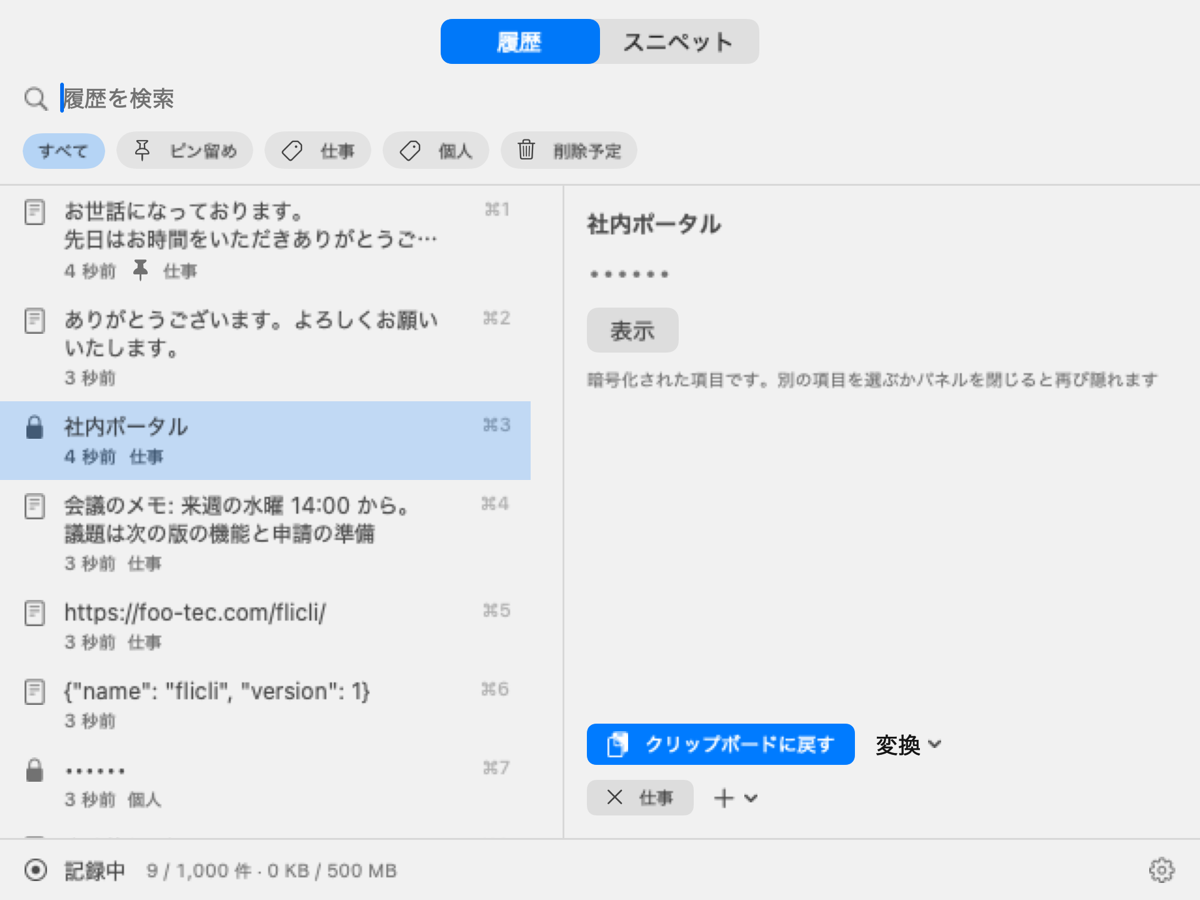
- In the list: a lock and "••••••", or the name. In the preview: "••••••" and 表示 (show), which decrypts that one item.
- from 1.1.0A shown item or snippet has a 隠す (hide) button that masks it again.
- It is hidden again when you select another item, close the panel, or (on iPhone / iPad) when the app goes to the background.
- You can copy an encrypted item back while it is hidden. Transforms need it shown first.
- Encrypted items do not match search by content; they match by name.
6Snippets
Register text you use often and copy it back in one step. Switch with スニペット at the top of the panel. The list is in most-recently-used order (from 1.1.0the history sort options do not apply to snippets).
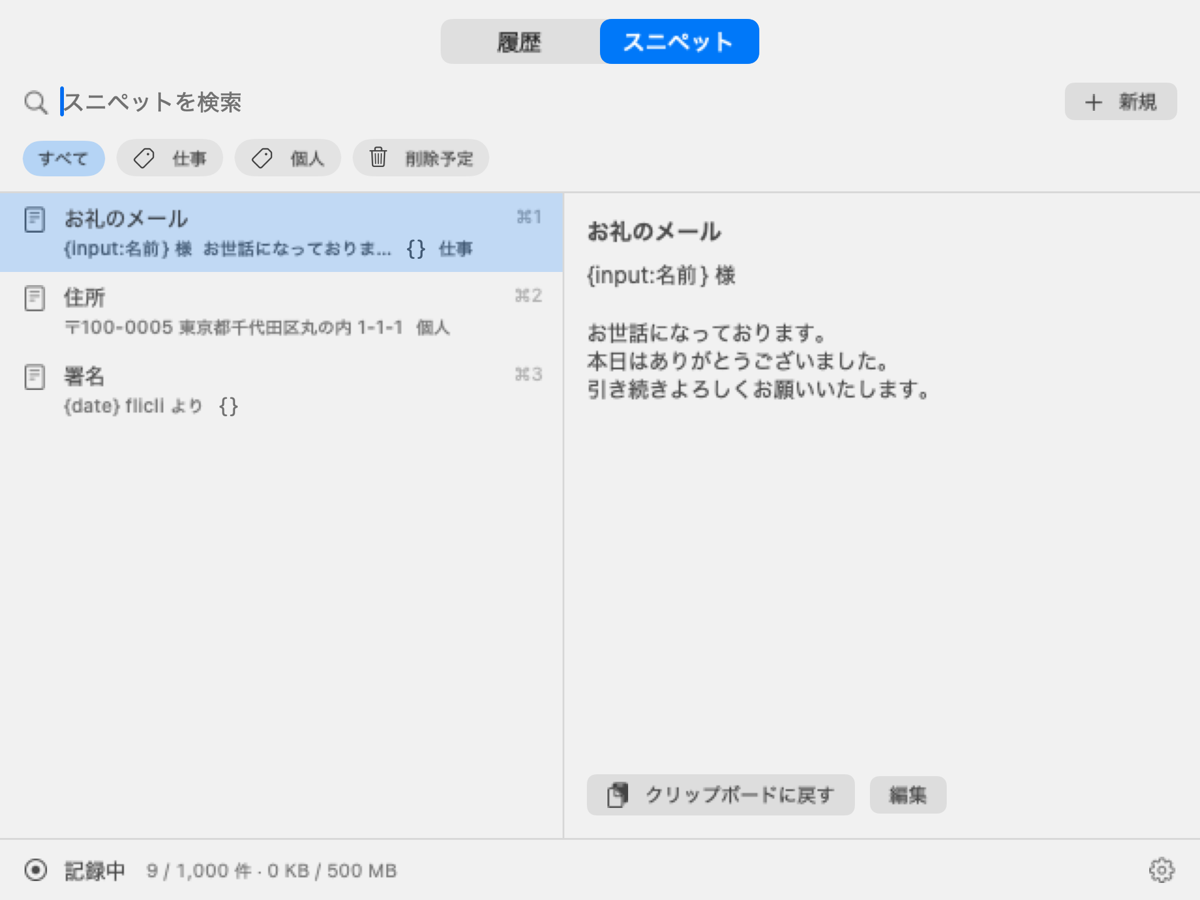
- 新規 (new)
- Enter a name and the text, then 保存 (save, ⌘S). To make one from a history item, use the item's スニペットにする (chapter 3). Making one from an encrypted item needs the key, and the snippet is encrypted too.
- 編集 (edit)
- Change the name and text. For snippets made from images, files or rich text, editing the text drops the formatting (you can still change only the name).
- Placeholders
- Placeholders in the text are replaced when you copy the snippet back. How they are written changed in 1.1.0.
- 1.0.0:
{date}and{time}become the current date and time when copied back.{input:Label}asks you to type a value (the result, with your input, is kept in the history). - from 1.1.0Date and time are
{datetime}and{datetime format="…"}; input is{input:…}and{textarea:…}fields (writing placeholders). You fill in the fields above the preview beforehand (入力 / 原文 / プレビュー). Snippets you copy back are not added to the history. - from 1.1.0
{date}and{time}no longer exist and stay as plain text. Rewrite snippets from 1.0.0 as, for example,{datetime format="yyyy-MM-dd"}(date) and{datetime format="HH:mm"}(time).
- 1.0.0:
- Categories, encryption, scheduled deletion
- The same marks as history items. Snippet names are not encrypted. from 1.1.0Scheduling deletion keeps the categories. Snippets never get 削除予定 automatically.
- 書き出す… / 読み込む… (Settings > スニペット)
- Export to JSON and import on another device. Encrypted and scheduled snippets are not exported. Importing never duplicates a snippet and never overwrites one with the same name.
- サンプルを追加 (add samples; Settings > スニペット) from 1.1.0
- Adds 8 example snippets that show the placeholder syntax (meeting notes, date formats, greeting with a name, daily report, thank-you, deadline notice, verification code, number formats), in the category "sample". Pressing it again adds no duplicates. The samples are in Japanese.
Writing placeholders from 1.1.0
{datetime} | Date and time at copy-back (yyyy-MM-dd HH:mm, e.g. 2026-11-04 14:05) |
|---|---|
{datetime format="pattern"} | Date and time at copy-back in the given pattern, e.g. {datetime format="yyyy/MM/dd HH:mm:ss"} → 2026/11/04 14:05:09 |
{input:Label} | Text typed in a one-line field (like HTML <input>) |
{textarea:Label} | Text typed in a multi-line field (like HTML <textarea>) |
{{ / }} | { / } (only in text that has placeholders) |
Unknown {…} stays as text. Replacing placeholders drops rich formatting (images and other content are kept).
Field attributes: put them after the label, separated by spaces. The names are the same as in HTML.
required | Required. An empty field turns red and the snippet cannot be copied back. |
|---|---|
value="initial" | The field's initial text. Quotes are needed only if it contains spaces. |
autocomplete=off | Do not remember input or suggest values for this field (for verification codes, for example). |
size=N | Width of a one-line field (characters). |
cols=N / rows=N | Width and height (lines) of a multi-line field. Without rows it grows with the content. |
type=datetime | A date/time picker, e.g. {input:締切 type=datetime format="M/d"}. It picks a date if the pattern has date letters and a time if it has time letters. Starts at the current date and time. |
type=number | A number field, e.g. {input:数量 type=number min=1 max=99 step=1}. Full-width digits are accepted and the thousands separator , is ignored. A value that is not a number, out of range or off the step shows the reason and blocks copy-back. step defaults to 1, so only integers (use step=0.01 or step=any for decimals). |
format="pattern" | The output form: a date pattern for date/time fields, a number pattern for number fields (e.g. format="#,##0円" → 1,234円). |
Patterns: date and number patterns are ICU patterns (Unicode UTS #35), the same as Swift's DateFormatter / NumberFormatter. Dates come out in Japanese (E → 水, a → 午後). Common letters: yyyy year, M MM month, d dd day, E weekday, H HH hour (0–23), h hour (1–12), a AM/PM, mm minute, ss second, '…' literal text. Numbers: 0 (digit always shown), # (digit if present), , (grouping), . (decimal point), % (×100 and %). The samples 日時の書式 (date formats) and 数値の書式 (number formats) added by サンプルを追加 show them all.
Example:
{datetime format="yyyy-MM-dd"} 日報(締切 {input:締切 type=datetime format="M/d"})

本日の作業:
{textarea:本日の作業 required rows=4}
入力 / 原文 / プレビュー (input / source / preview) from 1.1.0
When you select a snippet with placeholders, a 入力 / 原文 / プレビュー switch appears above the preview. A snippet with only {datetime} shows 原文 / プレビュー.
- 入力 (input)
- The fields, in the order they appear. Required fields have "*" after the label. A field with an error turns red with the reason below it (for example 入力してください, "please enter a value").
- 原文 (source)
- The text as written, with the placeholders.
- プレビュー (preview)
- The text with your values and the current time filled in, i.e. what will be copied back. The time updates every second.
- Copying back
- Return, double-click, ⌘1–⌘9 or クリップボードに戻す copy back with the values you entered. If a field has an error, nothing is copied and the field with the error is focused instead.
- Keys (Mac)
- Selecting a snippet does not put you in its fields (↑↓ keep moving through the list). Press Tab in the search field to jump to the first field (or the first one with an error). Esc leaves the field and returns to the list. Inside a field, ⌘Return copies back; Return does too when there is no multi-line field.
- Entered values are kept
- Values are kept per snippet: closing the panel or selecting another snippet keeps them, and you continue where you left off. Copying that snippet back, toggling its encryption, deleting it or quitting the app resets them. Values of encrypted snippets are not kept. Values are kept in memory only, never saved.
- Suggestions
- Values you copied back with are remembered per label (the same label gives the same suggestions in every snippet). They appear under the focused field; click or tap one, or choose with ↓↑ and press Return. They stay on this device and are not synced. Encrypted snippets, date/time fields and
autocomplete=offfields are not remembered; numbers are stored in half-width form. Edit, reorder or delete them in Settings > 入力の候補 (suggestions).
7Transforms
Text items can be transformed before they go back to the clipboard; the original is unchanged. Right-click > 変換して戻す copies the result back immediately; the 変換 menu in the preview shows the result first, then この結果を戻す copies it.
| Formatting and whitespace | Plain text, trim, remove blank lines, join lines, normalize line endings to LF |
|---|---|
| Character kinds | Full-width ⇄ half-width, hiragana ⇄ katakana, upper / lower case, camelCase, snake_case, kebab-case |
| Developer | Pretty-print / minify JSON, URL encode / decode, Base64 encode / decode, sort lines, unique lines |
| Your own (Mac only) | Settings > 変換(自分で定義) > 追加 registers a named regular-expression replacement. Stored on this Mac only; not synced. |
8Retention and deletion
An item is deleted only in these three cases.
- Limits: when the count (1,000 by default) or the file size (500 MB by default; content over 64 KB such as images) in Settings > 保持 is exceeded. Items without a pin or category go first, oldest first; if that is not enough, pinned and categorized items go too, oldest first. The newest item is always kept. Checked after every capture and at launch.
- Scheduled deletion: when the period in Settings (7 days by default) has passed since you marked the item. from 1.1.0Pinned and categorized items are deleted too.
- Delete now: when you delete it.
While sync is on, this device's limits apply only to uncategorized history. Synced (categorized) history has a separate shared limit, the same on every device, applied right after each sync (chapter 9).
from 1.1.0Every copy from another app creates a new item, even with the same content (and the new item is scheduled for deletion). An item you copy back from the flicli list does not create a new item; its updated time is refreshed and it moves to the top (Mac). The result of a transform becomes a new item. Snippets you copy back are not added to the history.
9Sync
Optionally, flicli syncs by hand with a Turso database that you own. Every Mac, iPhone and iPad set up with the same database can use your categorized history and snippets. Whatever you encrypt, items or snippets, is stored in the database as ciphertext, and only devices that imported the same key file can decrypt it. Until you set it up, your data stays on the device.
Setting up and syncing
- Settings > 同期 > 同期を設定…: enter the database URL (
libsql://…) and token. The token is stored only in this device's Keychain. - 今すぐ同期 (sync now) sends this device's changes, then pulls the other devices' changes. Nothing syncs automatically.
- Import the same key file on every device that syncs, so that encrypted items can be read everywhere.
What is synced
- History items with at least one category (including their names; encrypted content stays encrypted)
- Snippets and the list of categories
- The shared limit (below)
History without a category never leaves the device. Removing all categories, or scheduling deletion, removes the item from the other devices (from 1.1.0scheduling deletion keeps the categories, so the item stays synced; when the time comes it is deleted from every device). Deleting a synced item deletes it everywhere. Content over 64 KB (images, for example) is not transferred; other devices show it as a file from another device and cannot copy it back.
Keys and ciphertext take separate routes
When you sync, encrypted content reaches Turso only as ciphertext. The key stays in each device's Keychain; you carry it to your other devices yourself, as a key file. The developer touches neither.
- Keychain — the encryption key and the sync token; not synced through iCloud Keychain
- Local data — encrypted content is stored as ciphertext; uncategorized history never leaves
(by hand)
- Holds — categorized history and snippets (the content of encrypted ones stays encrypted), categories, the key's fingerprint
- Never holds — the key, the passphrase
(by hand)
- Keychain — the same key, imported, and this device's token
- Decrypted locally — only the item you press 表示 (show) on, on this device
on device A .flicli-keypassphrase-protected Import the key
on device B The key never travels through Turso. You hand the key file over yourself (on iPhone / iPad, through the Files app).
- Never reaches the developer: there is no developer server; neither the key nor the ciphertext is received.
- Turso alone cannot read it: even with the database and the token, encrypted content cannot be read without the key file and its passphrase.
- Keys never mix: sync stops if the database records another key's fingerprint, and a device with encrypted items will not accept a different key.
- Names are plain text: names, categories and times are not encrypted, so you can tell items apart. Do not put the secret in the name.
- Lose it and nobody can read it: without the key file and passphrase, not even the developer can recover encrypted items. Export the key as soon as you create it.
- Sync is optional: until you set it up, your data stays on the device.
Shared limit
共有の上限 in Settings > 同期 (count and size) applies to synced history. The value is stored in the database and is the same on every device. On any device, right after a sync, unpinned items are deleted oldest first, then pinned ones, and the deletion reaches every device. Lower it with care.
古い表を削除… (delete old tables)
When an update changes how synced data is stored, Settings > 同期 shows 古い表を削除…. The previous tables are kept in your database so that your own scripts can keep reading them. Delete them only after switching your scripts to the new tables (for example item_v3) and updating flicli on every device: a device still running an older flicli can no longer read the synced data once they are gone, and the deletion reaches every device.
from 1.1.0Synced data moves to item_v5 / representation_v5 / item_category_v5 (the "last copied" time becomes the "updated" time). The 1.0.0 tables (item_v3 and so on) remain as old tables and are no longer updated after 1.1.0. Switch your scripts to item_v5 and the other new tables.
10Settings (Mac)
Open with the gear at the bottom of the panel; Esc or the same button returns to the list.
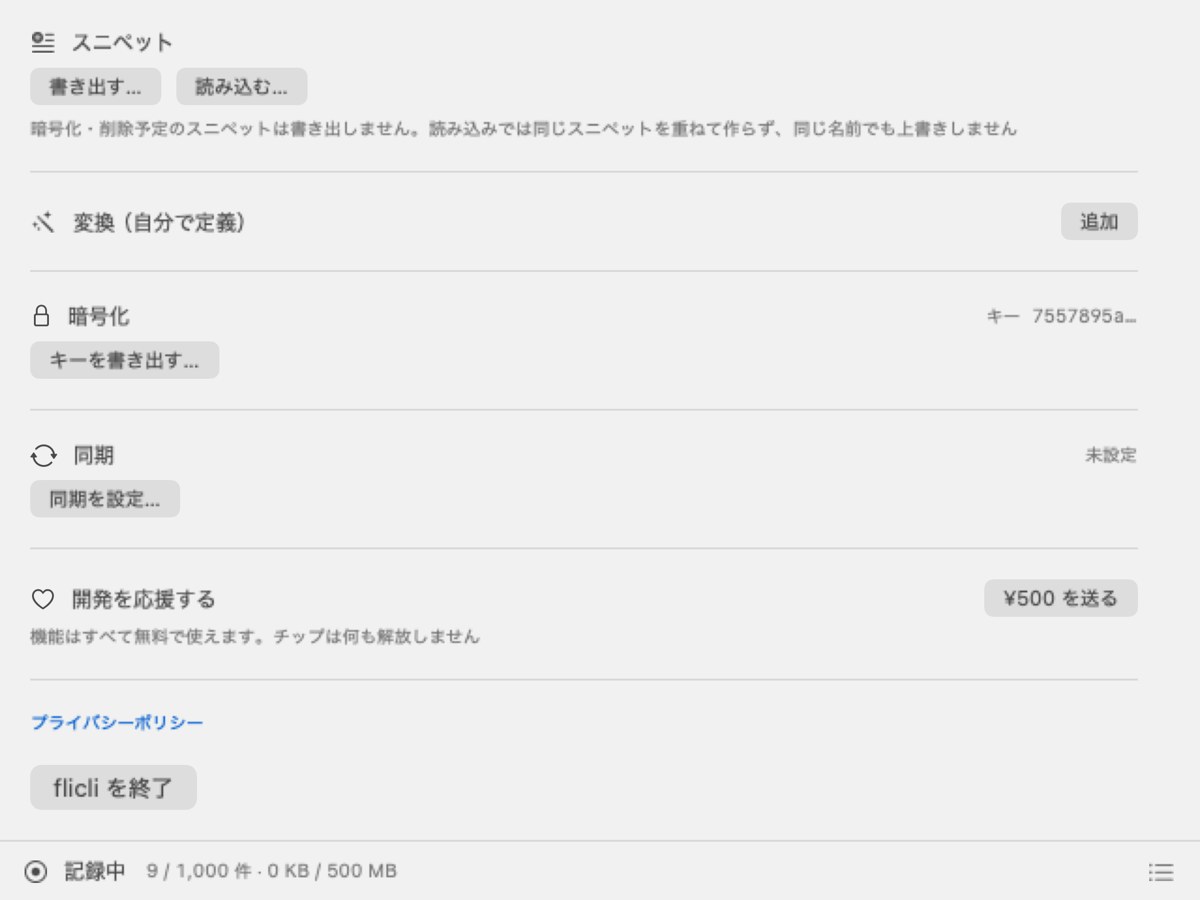
- 件数と保存量 (counts and size)
- This device's history against the limits; while syncing, synced history against the shared limit; and a breakdown (all, pinned, categorized, scheduled, encrypted, snippets, database and file size).
- ログイン時に起動 (launch at login)
- Off by default. Turning it on registers flicli with macOS.
- プレビュー (preview) from 1.1.0
- Whether to keep loaded previews in memory and read the neighbors ahead (on / off), and the memory limit (MB). The content of encrypted items is kept only while shown. Changes are still saved immediately.
- 保持 (retention)
- Item limit (100–10,000), file size limit (50–5,000 MB), days until scheduled deletion (1–30). Applies to this device's uncategorized history.
- スニペット (snippets)
- 書き出す… export / 読み込む… import (chapter 6). from 1.1.0サンプルを追加 (add samples).
- タグ (tags) from 1.1.0
- The list of categories (collapsible). Drag to reorder; the tabs above the list follow the same order. Shows the count per category (history · snippets), and lets you rename or delete a category (items are not deleted).
- 入力の候補 (suggestions) from 1.1.0
- Edit, reorder or delete the suggestions for snippet fields, per label (chapter 6).
- 変換(自分で定義) (your own transforms)
- Regular-expression replacements (chapter 7).
- 暗号化 (encryption)
- キーを作る create / キーを書き出す… export / キーを読み込む… import (chapter 5).
- 同期 (sync)
- 今すぐ同期, 接続先…, the shared limit, 古い表を削除… (chapter 9).
- 開発を応援する (tip jar)
- One optional tip (in-app purchase, ¥500). Every feature is free; the tip unlocks nothing.
- プライバシーポリシー / flicli を終了
- Opens the privacy policy / quits flicli (it has no Dock icon, so quit from here).
11iPhone / iPad
The screens follow the Mac: 履歴 (history) and スニペット (snippets). iOS does not let apps read the clipboard in the background, so you add items yourself.
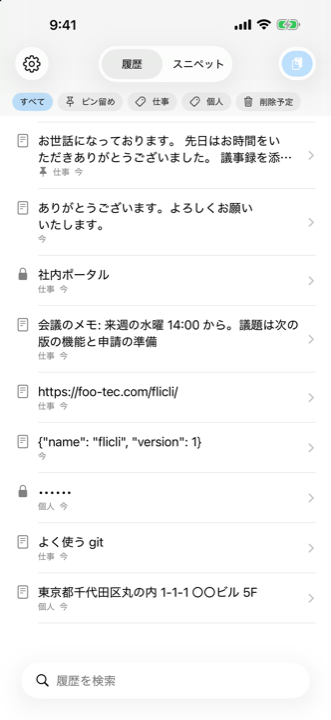
- Paste button (top right)
- Adds the current clipboard to the history without an iOS prompt. Text copied on your Mac arrives through Universal Clipboard the same way.
- Share sheet
- In Safari, Photos and other apps, choose flicli in the share sheet. Text, URLs and images are placed in an inbox and added when you open flicli next.
- List
- Search and chips as on the Mac. Tap to preview. Swipe right for 戻す (copy back), swipe left for 削除 (delete). Long-press for the item menu.
from 1.1.0Sorting (updated time or name, ascending / descending) sits left of the tab bar. Long-press a category tab for カテゴリを削除…. The item menu has 編集 / 複製して編集 (edit / duplicate and edit; text and rich-text items only). - Settings (gear, top left)
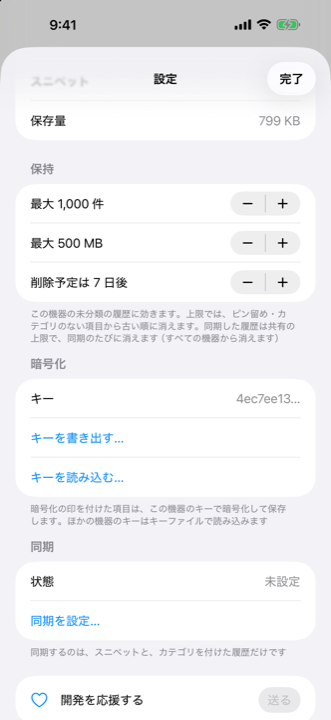
- Counts, retention, encryption, sync, tip jar, links. from 1.1.0Tags, preview, and snippets (サンプルを追加, 入力の候補).
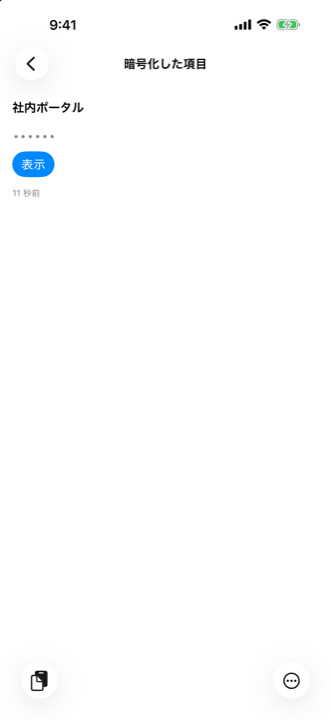
- Preview
- The name (if any), the text, image or file list. The bottom bar has クリップボードに戻す (copy back), 変換 (transform) and その他 (more: name, pin, categories, encrypt, schedule deletion, delete now).
- Tags from 1.1.0
- The item's tags (categories and 削除予定) are display-only. Add or remove them from the "+" list, where attached tags are checked.
- Encrypted items
- "••••••" and 表示 (show). Hidden again when the app goes to the background. from 1.1.0Once shown, 隠す (hide) hides it again.
- Files from another device
- Large content that arrived through sync has no file on this device; it is listed but cannot be copied back.
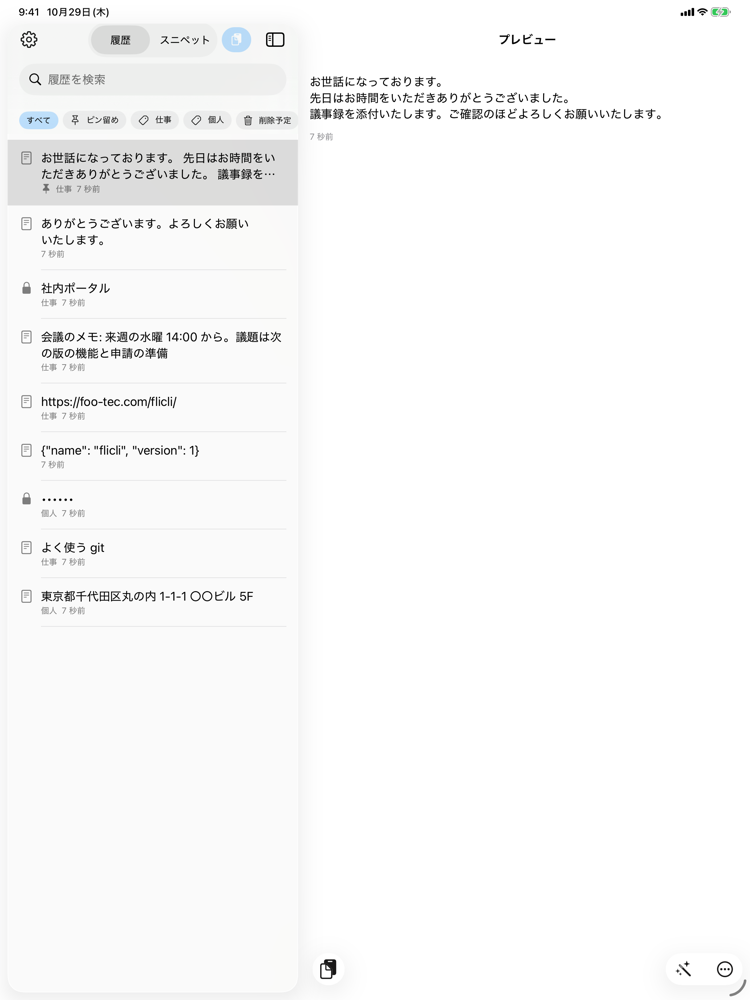
- iPad
- The list and the preview sit side by side.
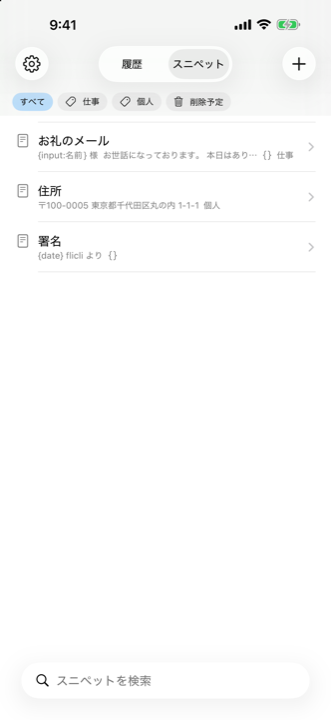
- Snippets from 1.1.0
- The detail screen of a snippet with placeholders has the same 入力 / 原文 / プレビュー as the Mac (chapter 6). クリップボードに戻す is disabled while a field has an error. 戻す from a swipe or long press opens an input sheet for snippets with fields (キャンセル cancels).
- After copying back from 1.1.0
- iPhone and iPad do not watch the clipboard, so copying back does not reorder the history. Adding the same content again with the paste button creates a new item.
12Messages
| 記録を停止中 (recording stopped; bottom of the Mac panel) | macOS clipboard privacy is set to ask or deny for flicli. Open System Settings > Privacy & Security > Paste from Other Apps and set flicli to Always Allow. |
|---|---|
| スリープ中のため停止 (stopped while the display sleeps) | Recording pauses while the display sleeps and resumes afterwards. |
| キーがないため表示できません (cannot show without the key) | The item is encrypted and this device has no key, or a different one. Import the key file you exported: Settings > 暗号化 > キーを読み込む…. |
| Concealed copy not saved | Concealed copies are saved only with a key. Create one in Settings > 暗号化 > キーを作る. |
| 同期先は別の暗号化キーを使っています (the sync database uses a different key) | The database holds items encrypted with another key. Import that key's file, then sync. |
| 同期を開けませんでした(オフラインかもしれません) (could not open sync) | The database cannot be reached. Check the network, the URL and the token. The app keeps working without sync. |
| パスフレーズが一致しません (passphrases differ) | The two entries when exporting the key do not match. |
| 暗号化した項目からスニペットを作るにはキーが要ります | Import the key before making a snippet from an encrypted item. |
| invalid input: title is longer than 128 characters | Names are limited to 128 characters. |
| 入力してください / 数字で入力してください / 1〜99 の範囲で入力してください / 整数で入力してください (enter a value / a number / a value in range / an integer) from 1.1.0 | An error in a snippet field: a required field is empty, or a number field holds something that is not a number, is out of range or off the step. The range shown is the field's min / max. Fix it and the red frame goes away. For decimals, write step=0.01 or step=any in the field. |
| 誤りのある欄があります(n) (n fields have errors) from 1.1.0 | Shown on the preview when n fields have errors. Fix them under 入力. |
13Contact
Email: [email protected]. Please include the app version and your macOS, iOS or iPadOS version.
See also Support and the privacy policy.